Sign in
Docs5 chapters · 24 sections

The Glasvey manual. From first template to live site.

Finding a template, building it with your AI agent, making it yours and putting it online. Updated 26 Oct 2026.

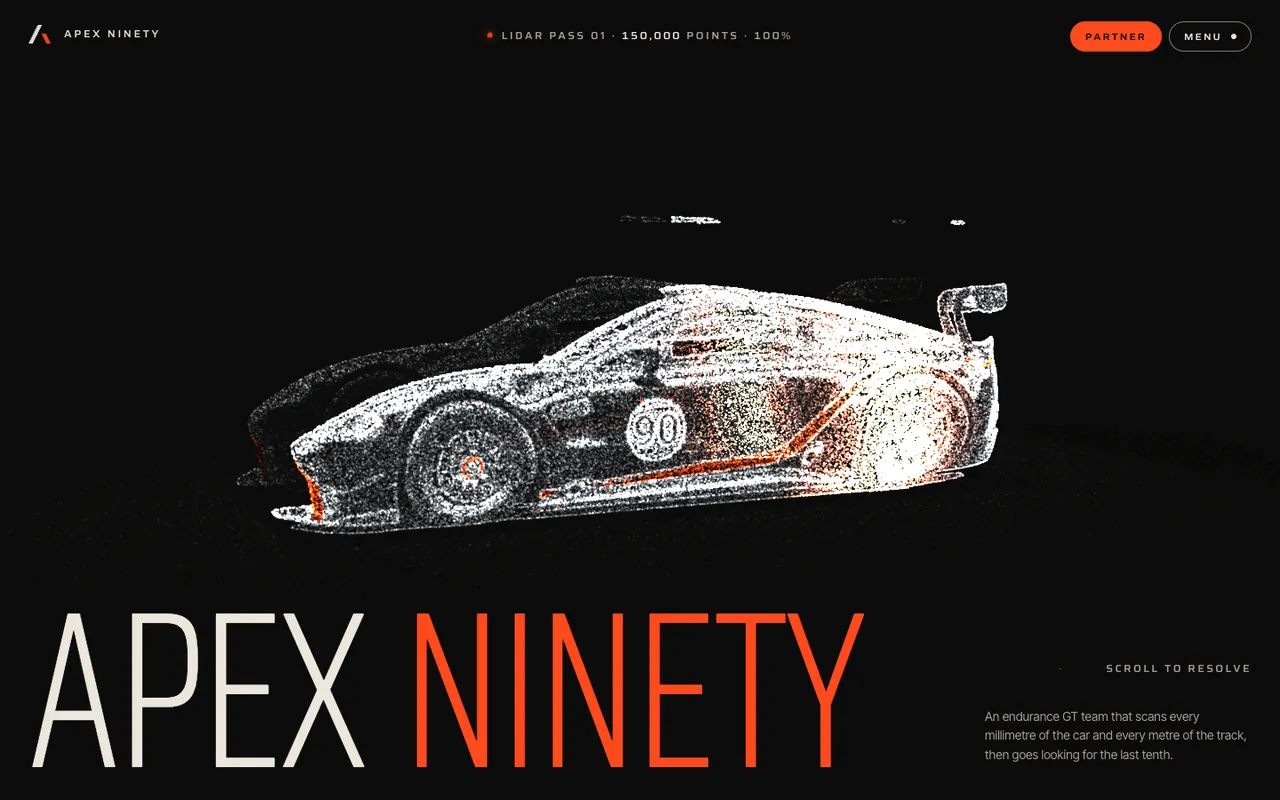
Fig. 1Apex, endurance racing teamOpen the template
1.1

What is Glasvey?

Glasvey is a web design studio. We design and build award-style websites with 3D, motion and scroll film, for clients and as templates.

The library holds 50 of those sites. Each one is a tested build prompt: a precise, section-by-section description of the site that an AI coding agent turns into the exact site you see in the preview.

Want one built around your own brand instead? The same people take on projects. Start a project.

See also 1.2 How it works, 1.3 HTML or Next.js, 5.6 Custom projects
1.2

How it works, in four steps

Pick a template, copy its prompt, paste it into your agent in an empty folder, then make it yours.

  1. Pick a template. Open any card to see its film, the site on a laptop and a phone, and its specs.
  2. Copy the prompt. Press Copy prompt. Once the template is yours, the button copies the prompt straight from your library.
  3. Paste it into your agent. Make an empty folder, drop the media in, and give the prompt to Claude Code, Cursor or Codex. It builds the site section by section.
  4. Make it yours. Swap the copy, colours and images, then ask for changes one section at a time.

See also 3.2 Starting a build, 3.3 Making it yours, 2.1 Finding a template

1.3

Two builds: plain HTML or Next.js

Every template comes with two prompts. Same site, same motion; pick the one that suits where it will live.

The HTML build is plain HTML, CSS and JavaScript. No build step, no framework: open it, or put it on any static host. The simplest way to a live site.

The Next.js build is a Next.js 16 app in TypeScript. Choose it when the site will grow: more pages, a CMS, a team working on it. It deploys to Vercel or Cloudflare with no configuration.

Each prompt has every value that matters written down (colours, type, timings, easing, shaders), so the agent doesn’t have to guess.

See also 4.1 Why plain HTML, 4.2 Why Next.js, 3.2 Starting a build

1.4

Free templates

Smalto, Glint and Sotto are free. All it takes is your email.

Open a free template and press Copy prompt. We email you a link that signs you in, and the template is in your library with both prompts and the media zip.

Free templates come under the same commercial licence as the rest. See the free templates.

See also 5.3 Your library, 5.4 Licence, 1.2 How it works

1.5

Saving templates for later

Press Save on any card or template to keep a shortlist while you decide.

Your saved templates are under the bookmark in the header, at /saved. They’re kept in this browser, so there’s nothing to sign in to.

See also 2.1 Finding a template, 2.2 The template view

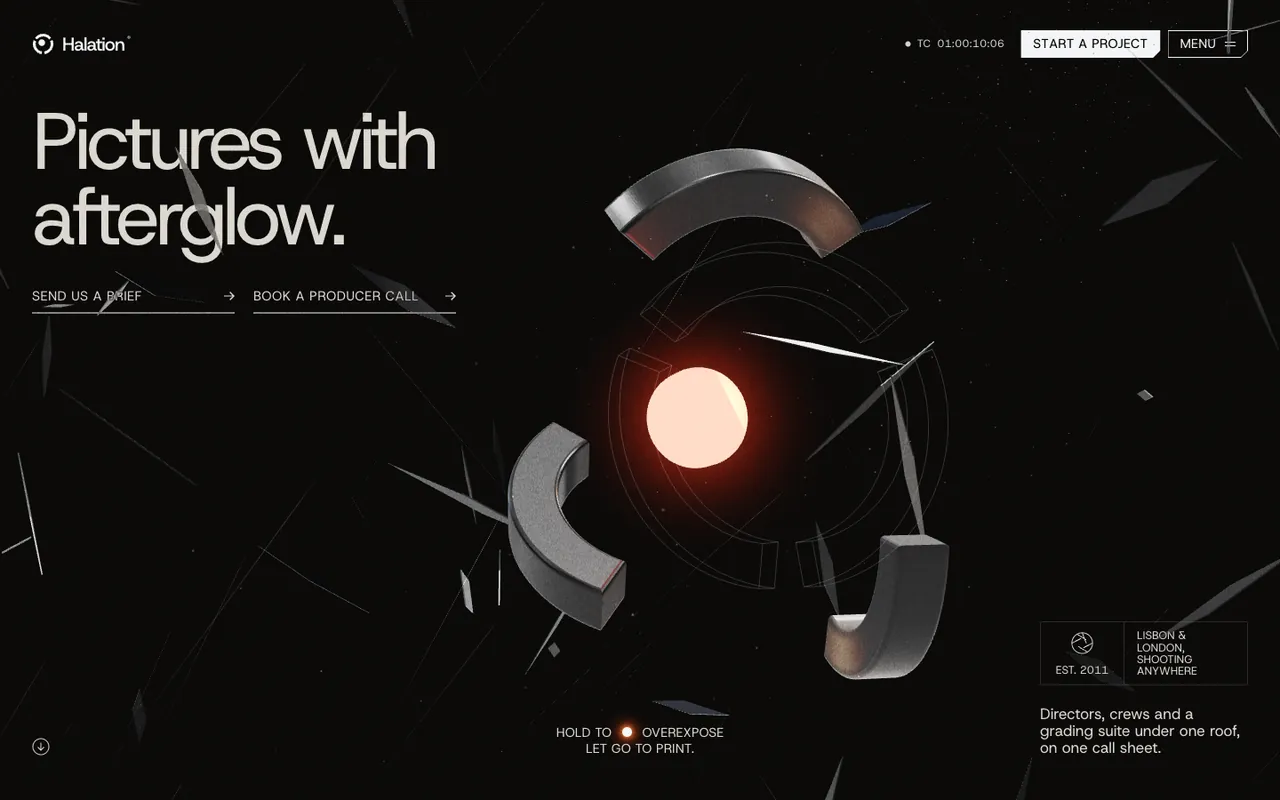
Fig. 2Halation, film production companyOpen the template
2.1

Finding a template

Browse every template at /templates, or press ⌘K anywhere to jump straight to one.

On /templates you can search by name, niche or effect, filter by tag (3D, particles, pinned story and more), pick dark or light, and sort by featured, newest or biggest prompt.

Every tag also has a page of its own, like Free, so you can share a shortlist.

See also 2.2 The template view, 2.4 New drops, 1.5 Saving templates

2.2

What the template view shows

Every view is a real recording of the build, made in Chrome, not a mock-up.

  • Preview: the first screen, looping.
  • Laptop: the whole page scrolled top to bottom at 1440 × 900.
  • Mobile: the phone layout at 390 × 844.
  • Specs: the highlights, the stack, the type, the palette, the number of pages and the size of each prompt.

Use ← and → to step through templates, and Copy link to share one.

See also 2.1 Finding a template, 2.3 What you get

2.3

What you get with a template

Two build prompts, every image and film the site uses, and the recipe for each.

In your library each template has a button per prompt (HTML and Next.js) that copies it in one click, or saves it as a .md file. Next to them is a zip of the template’s media, with the recipe for every image and film, so you can make your own in the same style.

Each prompt starts with a licence line that names your licence.

See also 5.3 Your library, 5.4 Licence, 3.2 Starting a build

2.4

New drops

New templates land on Instagram first, then on the site.

Every template, newest first, is on /drops. Follow @glasvey to see each one as it lands. All-access members find every new template in their library the day it’s released.

See also 5.1 Plans & access, 2.1 Finding a template

Fig. 3Elevon, business-jet brokerageOpen the template
3.1

Which AI tools work

Any agent that can write files in a folder: Claude Code, Cursor, Codex, Windsurf, Cline and the like.

The prompts were tested with an agent working in an empty folder with no other context. Agents that can run a dev server and look at the page get there fastest.

See also 3.2 Starting a build, 3.4 Asking for changes

3.2

Starting a build

An empty folder, the media, and the prompt. That’s all the agent needs.

  1. Make a new, empty folder and open it in your agent.
  2. Unzip the template’s media into it.
  3. Paste the whole prompt, the HTML one or the Next.js one, and send it.
  4. Let it run. It builds the site section by section, exactly as previewed.

A long prompt is long on purpose: paste all of it, even when your tool shows it as an attachment.

See also 3.3 Making it yours, 3.1 Which AI tools, 1.3 HTML or Next.js

3.3

Making it yours

Swap the copy, colours and images first, and keep the structure: the motion is tuned to it.

Ask the agent for one kind of change at a time: “replace the brand name and copy with this”, then “change the palette to these colours”, then “use these images”. Each media recipe shows how the original was made, so new images can match the style.

See also 3.4 Asking for changes, 2.3 What you get

3.4

Asking for changes

Work one section at a time, and name the section you mean.

“In the pricing section, add a third card” works better than “add pricing”. After each change, check the page on a phone too: every template is built to run smoothly on phones, and big changes to a 3D or scroll section are where that can slip.

See also 3.3 Making it yours, 3.5 Putting it online

3.5

Putting it online

The HTML build runs on any static host; the Next.js build deploys to Vercel or Cloudflare.

For the HTML build, drag the folder into Netlify, Cloudflare Pages or any static host. For the Next.js build, push it to a Git repository and import it in Vercel or Cloudflare; no configuration needed. Then point your domain at it.

See also 4.1 Why plain HTML, 4.2 Why Next.js, 4.3 Performance & SEO

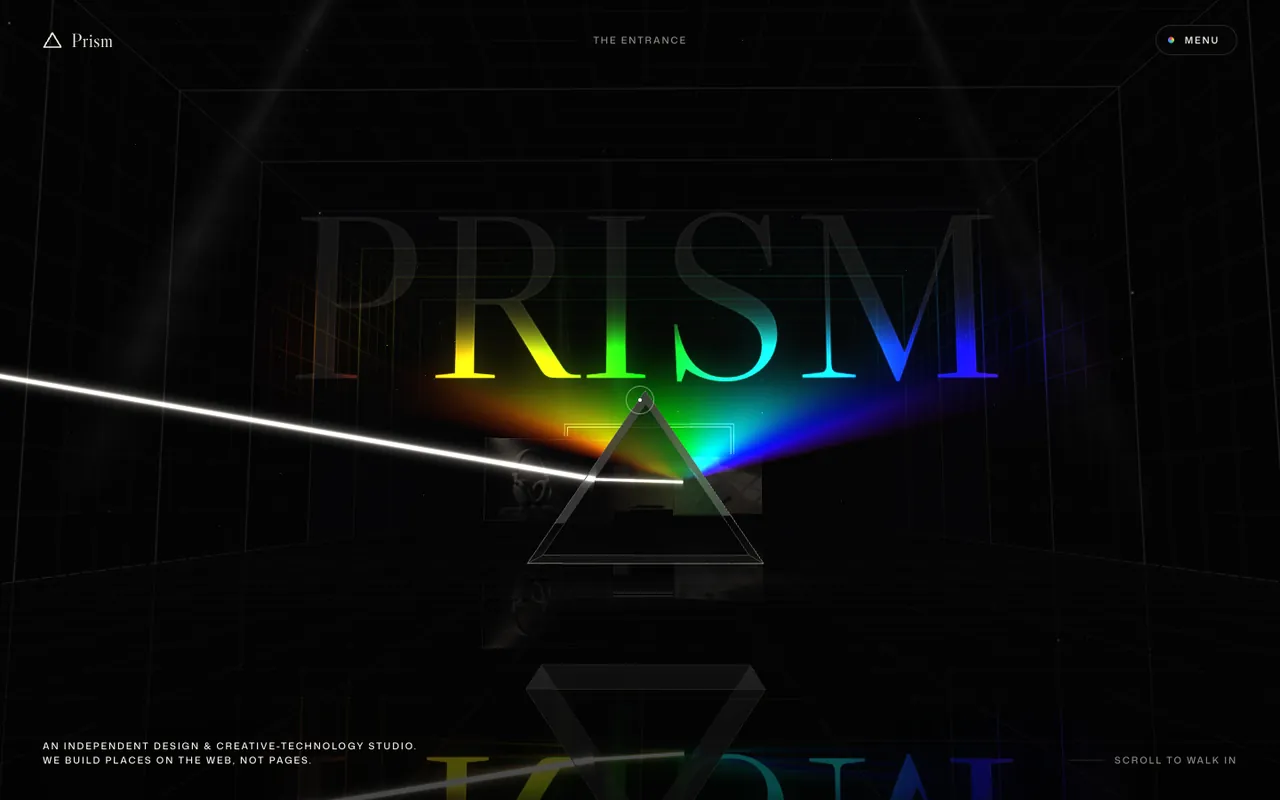
Fig. 4Prism, design studioOpen the template
4.1

Why a plain HTML build

Nothing to install, nothing to update, nothing that breaks in a year.

A site that is HTML, CSS and JavaScript loads fast, costs nothing to host and keeps working. For a one-page brand site that’s usually all you need.

See also 4.2 Why Next.js, 3.5 Putting it online

4.2

Why a Next.js build

For a site that will grow: more pages, a CMS, a team.

The Next.js build is a TypeScript app with routes, so adding pages, wiring a CMS or handing it to developers is straightforward. Multi-page templates get routed transitions between pages.

See also 4.1 Why plain HTML, 3.5 Putting it online

4.3

Performance and SEO

Heavy motion, light pages: every template is measured before it goes up.

The builds load their 3D and films only when needed, keep text real (not baked into images), and set titles, descriptions and social images. Run Lighthouse on your built site after you’ve swapped in your own media, since big images are the usual cause of a slower page.

See also 3.5 Putting it online, 4.1 Why plain HTML

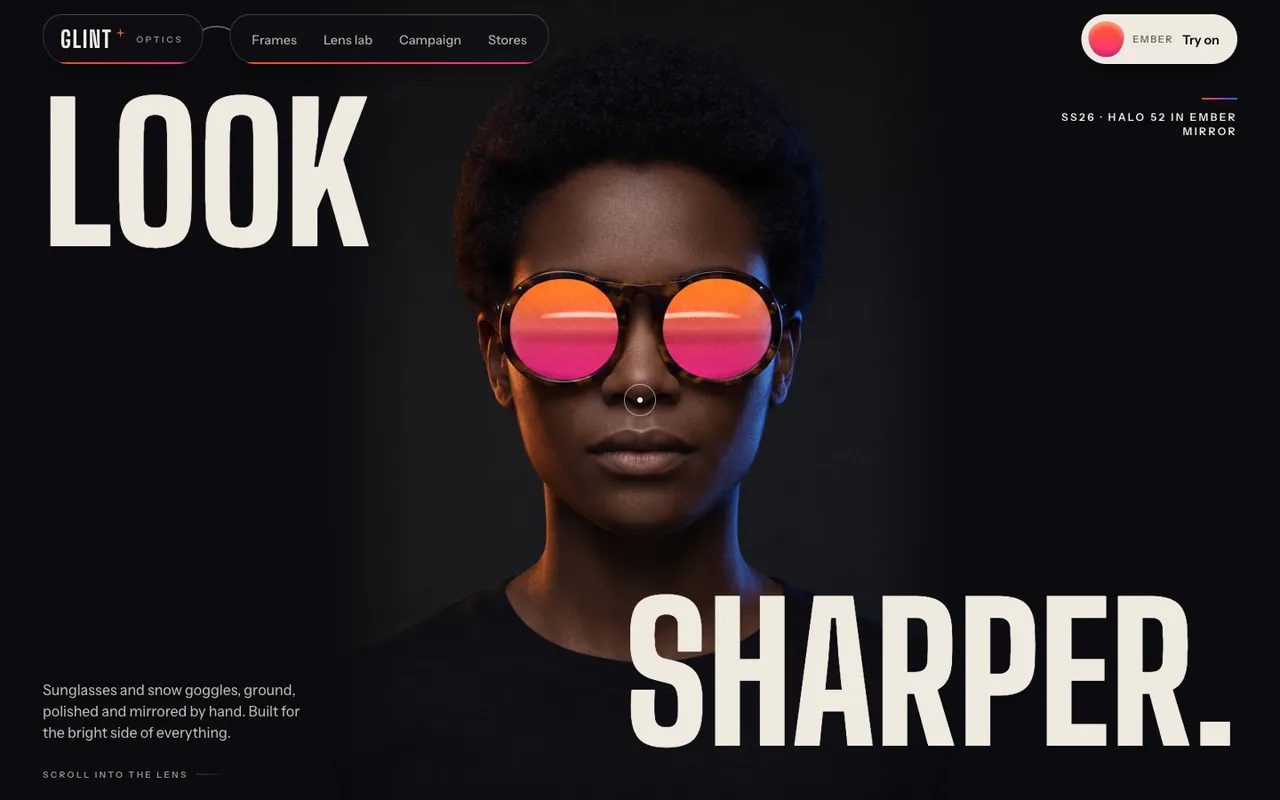
Fig. 5Glint, eyewear labelOpen the template
5.1

Plans and access

One template, or All-access: every template and every new one, in one payment.

Both are one-time payments on Gumroad. No subscription, no seats, no credits. You can buy several single templates at once with one key. If you buy All-access after single templates, those stay yours.

Compare them on the pricing page.

See also 5.2 Redeeming a key, 5.4 Licence, 5.5 Refunds

5.2

Redeeming a key

Gumroad shows your key on the receipt and emails it to you. Paste it at glasvey.com/redeem.

Enter the key with the email you bought with at /redeem. A template key asks which template you want. We email you to confirm, and pressing Confirm adds it to your library and signs you in.

A key worth several templates can be used one template at a time, now or later.

See also 5.3 Your library, 5.1 Plans & access

5.3

Your library and signing in

Everything you own is in your library, with no password to remember.

Sign in with your email and we send you a link. Your library has each template’s prompts and media. Templates you own also show their prompts right in the template view, with Yours on their card.

See also 5.2 Redeeming a key, 2.3 What you get

5.4

The licence

Use a template for your own sites and for client sites, as many as you like.

What the licence doesn’t allow is reselling or sharing the prompts or the media. Free templates come under the same licence. Read the licence.

See also 5.1 Plans & access, 1.4 Free templates

5.5

Refunds

Templates can be copied the moment you get them, so sales are generally final.

We refund within 7 days if you never got access and we can’t fix it, if a template is broken or clearly different from its preview and we can’t fix it, or if you were charged twice. Write to us first: most problems are quick to solve. Refund policy.

See also 5.1 Plans & access, 5.7 Getting in touch

5.6

Custom projects with the studio

A template made yours, or a site designed from scratch around your brand.

Every project ships the way our templates do: both builds and a tested build prompt, so your team or your agent can keep extending it. Tell us about your site on the studio page; we reply within two working days.

See also 1.1 What is Glasvey, 5.7 Getting in touch

Search

Search templates, tags and pages